


Welcome to the Dance Church zoom room!
Do you want to silence the Zoom audio? Follow these steps:
When joining Zoom, just close the “Join Audio/Join with Computer Audio” window.
(Do not click on “Join with Computer Audio” or “Join Audio”)

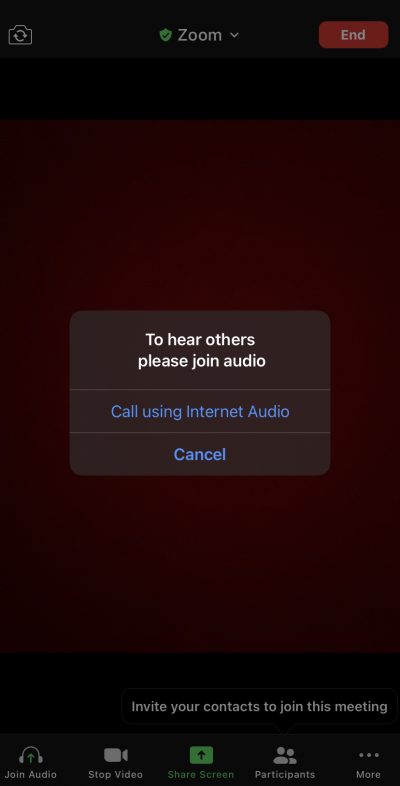
If you’re joining from a mobile device, just tap “cancel” when it says ‘to hear others please join audio’.
If your Zoom is set to “automatically join audio” then:
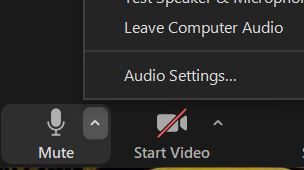
Mouse-over the “mute” button, and click the ‘up arrow’. Then click on “audio settings”.
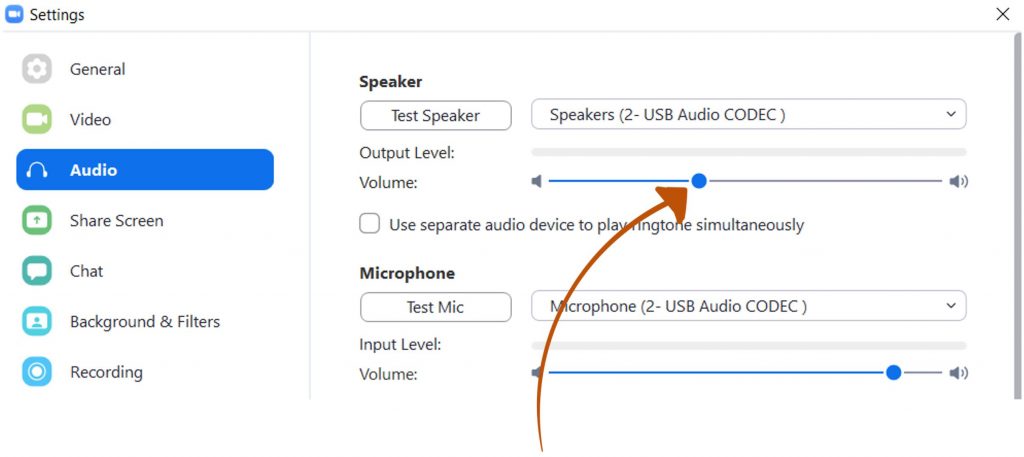
In “Audio Settings” click and drag the “Output Level Volume” all the way to the left. Then close the settings.
(Remember to turn the Output Level back up when you close Zoom so that you can hear audio in your future meetings.)
Do you want to silence the Twitch.com audio instead? Follow these steps:
Move your mouse over the Twitch.com video for Dance Church. Click on the Speaker icon at the bottom left. This will mute the audio feed from Twitch.
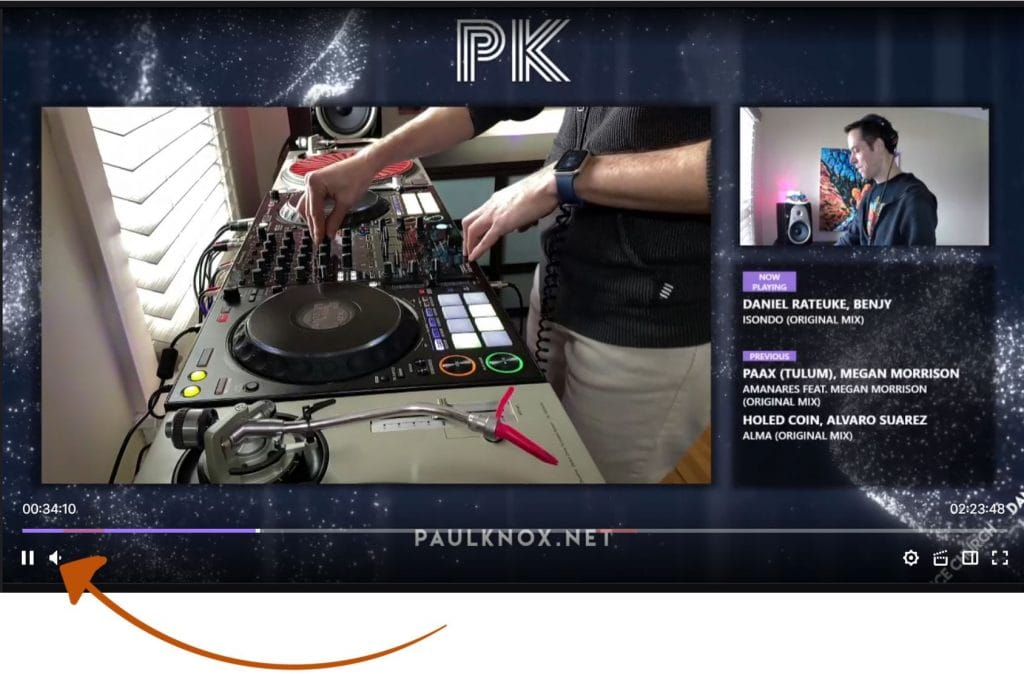
You should now be all set. If you still need help, ask us in the Twitch or Zoom text chat.
Have fun!